
 Unreal Material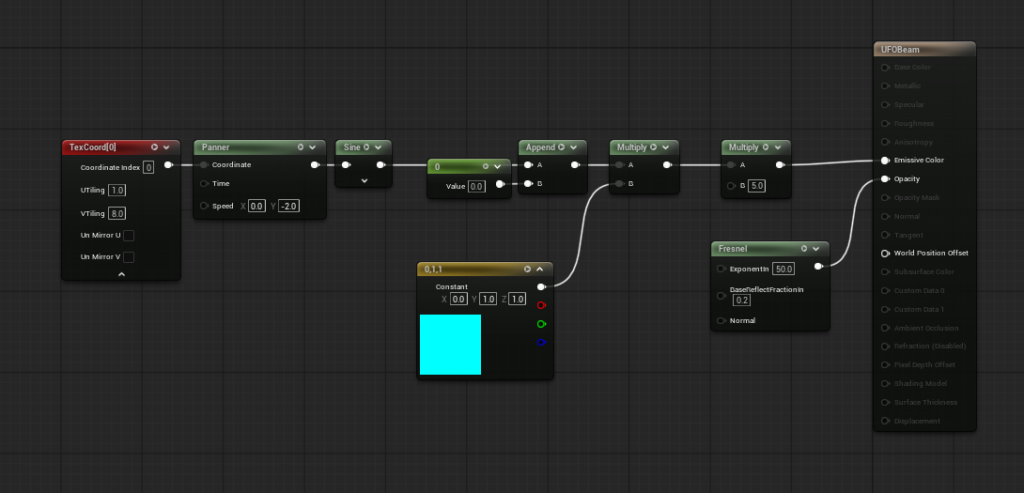
1. Create the Material
- Right-click in Content Browser → Material
- Open it.
- Set:
- Blend Mode: Translucent (or Additive for stronger glow)
- Shading Model: Unlit
2. Add the UV Coordinates
Add:
- Texture Coordinate node (
TexCoord)
Set:
- U Tiling = 1
- V Tiling = 8
3. Add a Panner
Add:
- Panner
Connect:
TexCoord → Panner (Coordinate)Set Speed:
Speed X = 0
Speed Y = -2
This makes the effect move vertically.
4. Create the Wave Pattern
Add:
- Sine
Connect:
Panner → SineThis turns the scrolling UVs into a repeating wave.
5. Create a Float2
Add:
- Constant (value = 0)
- Append Vector
Connect:
Constant(0) → Append A
Constant(0) → Append B
Output:
(0,0)Then connect:
Sine → Append ADepending on your UE version, the Sine output may be replicated automatically.
6. Create the Beam Color
Add:
- Constant3Vector
Set color:
R = 0
G = 1
B = 1
(Cyan)
7. Multiply the Pattern by the Color
Add:
- Multiply
Connect:
Append → Multiply A
Color → Multiply B
Now the scrolling wave becomes cyan.
8. Increase Brightness
Add another:
- Multiply
Connect:
Previous Multiply → Multiply A
Constant(5) → Multiply B
Create a Constant node:
Value = 5This boosts emissive intensity.
9. Connect to Emissive
Connect:
Multiply(×5) → Emissive Color10. Add Fresnel for Opacity
Add:
- Fresnel
Set:
Exponent = 5
Base Reflect Fraction = 0.2
Connect:
Fresnel → OpacityThis fades the center and brightens the edges.
Final Node Flow
TexCoord
    ↓
Panner (0,-2)
    ↓
Sine
    ↓
Append
    ↓
Multiply
    ↑
Cyan Color (0,1,1)
    ↓
Multiply
    ↑
Constant 5
    ↓
Emissive Color

Fresnel
    ↓
Opacity
Visual Result
- Cyan energy beam
- Animated scrolling effect
- Bright emissive glow
- Soft edge fade from Fresnel